
%20Kopie%2009.18.08.png)
The most important thing in brief:
- Private storage: Save your lesson notes, sample solutions, or additional materials directly in the course. Everything remains invisible to learners and is only accessible to you and collaborators.
- Class-based filing: Make materials, tips or content developed in class centrally available to your class. This gives all learners access to relevant files and texts at any time.
- Public file links: Share files from your course easily via a link, e.g. for assignments, quick file transfer or to integrate materials directly into a learning coach.
- Simplified course navigation: Switch between course blocks faster or jump straight to a specific section. This saves time during preparation and in class.
🗒️ Private notes
Would you like to save lesson notes directly to a course block so that only you can see them? Or drop off a sample solution? There is now a place for this: private filing.
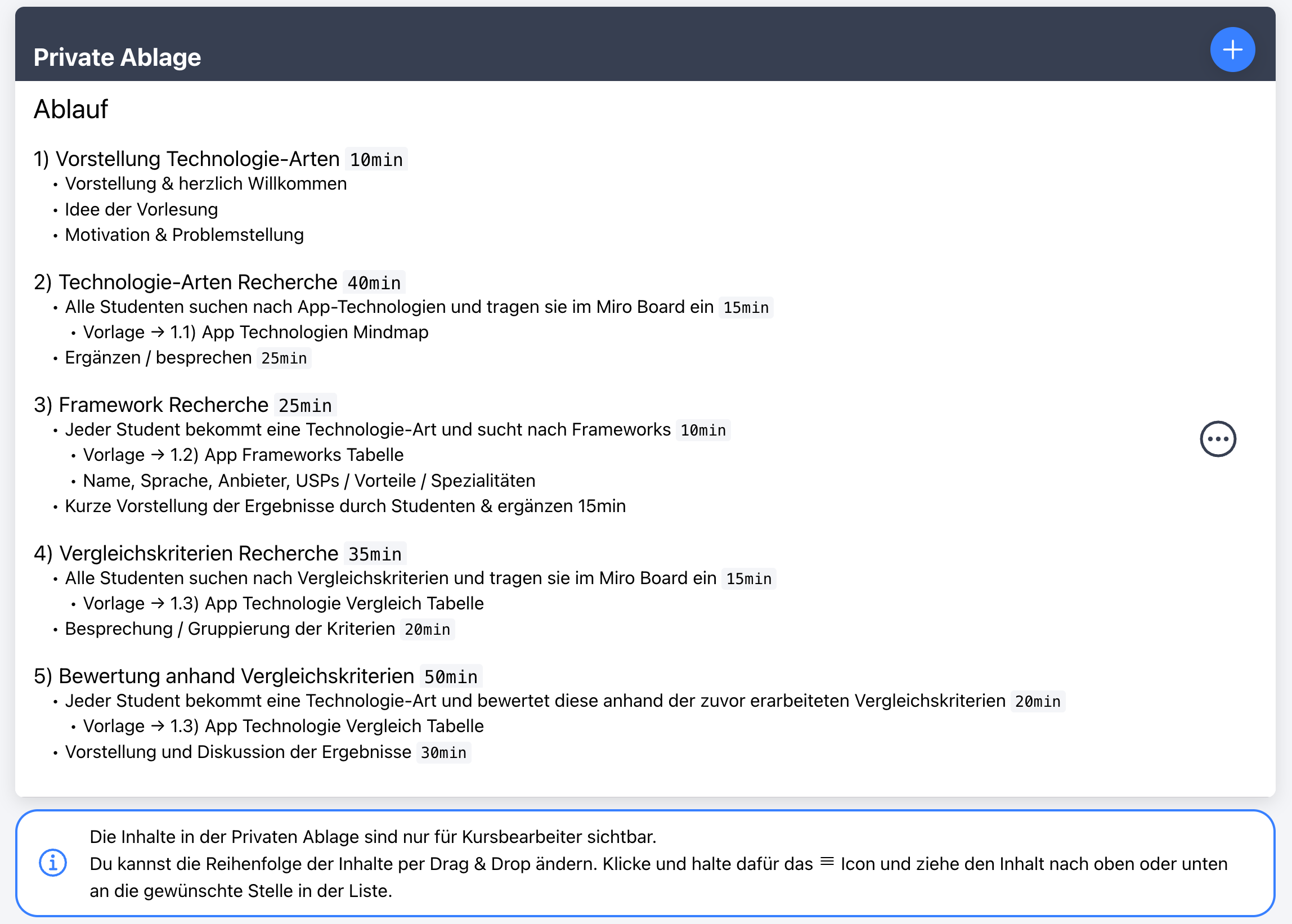
The private storage makes it possible to save texts and files at course and course block level. Unlike normal content, the content of the private file is only visible to you as the course creator and to collaborators you have invited.
Simply open your course or course block and scroll down. There you will find the Private Storage section:
🗃️ Class-based filing
Would you like to send tips to your class about a course? Or make content developed in class available digitally? Then you can do this now via the new folder.
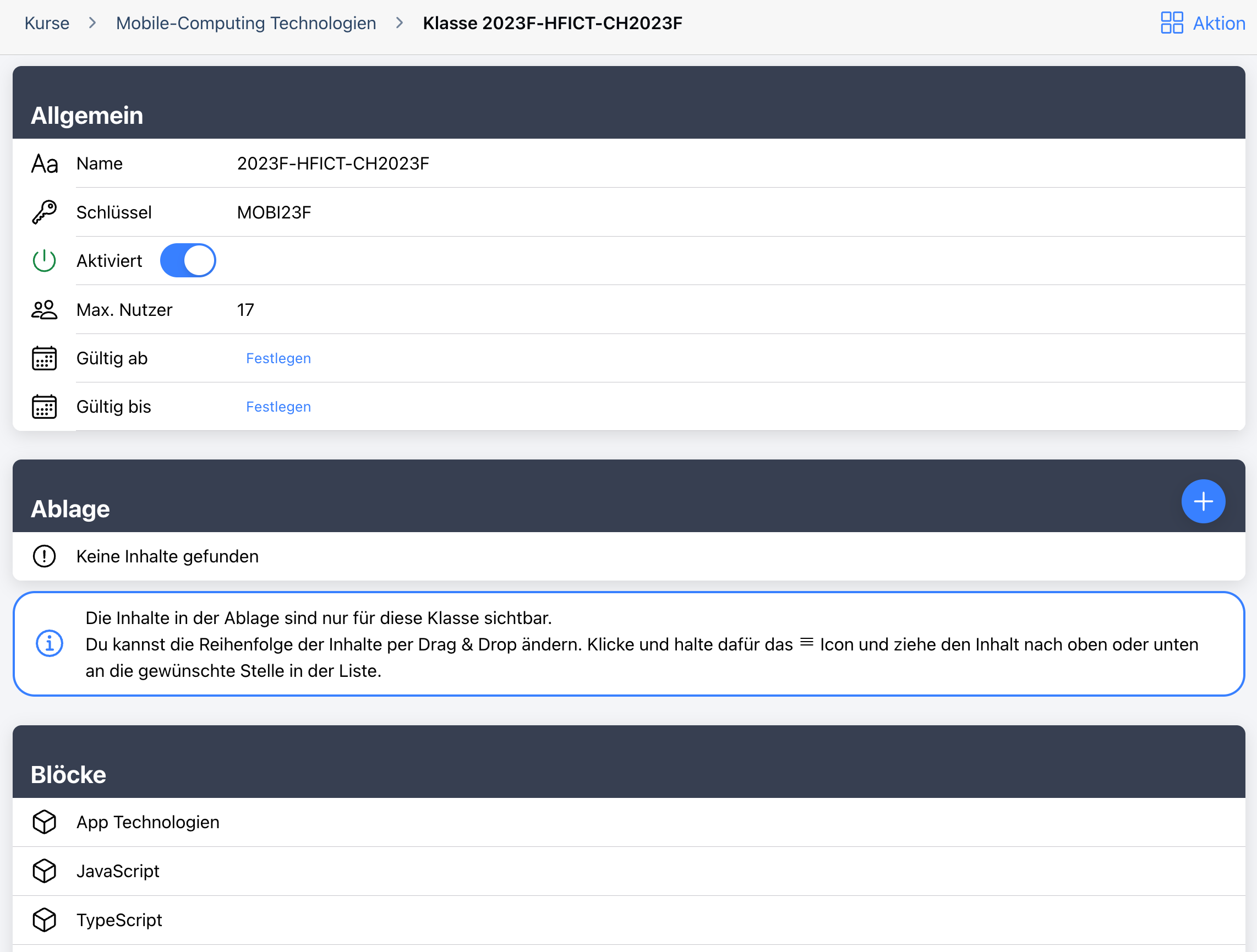
Unlike private filing, filing is tied to a class and is therefore only visible to participants in that class. You can find the file when you open a course and then click on a class in the Classes section. Here you can upload texts and files either at course level or at course block level:
Clicking on a block leads to the storage for a course block:
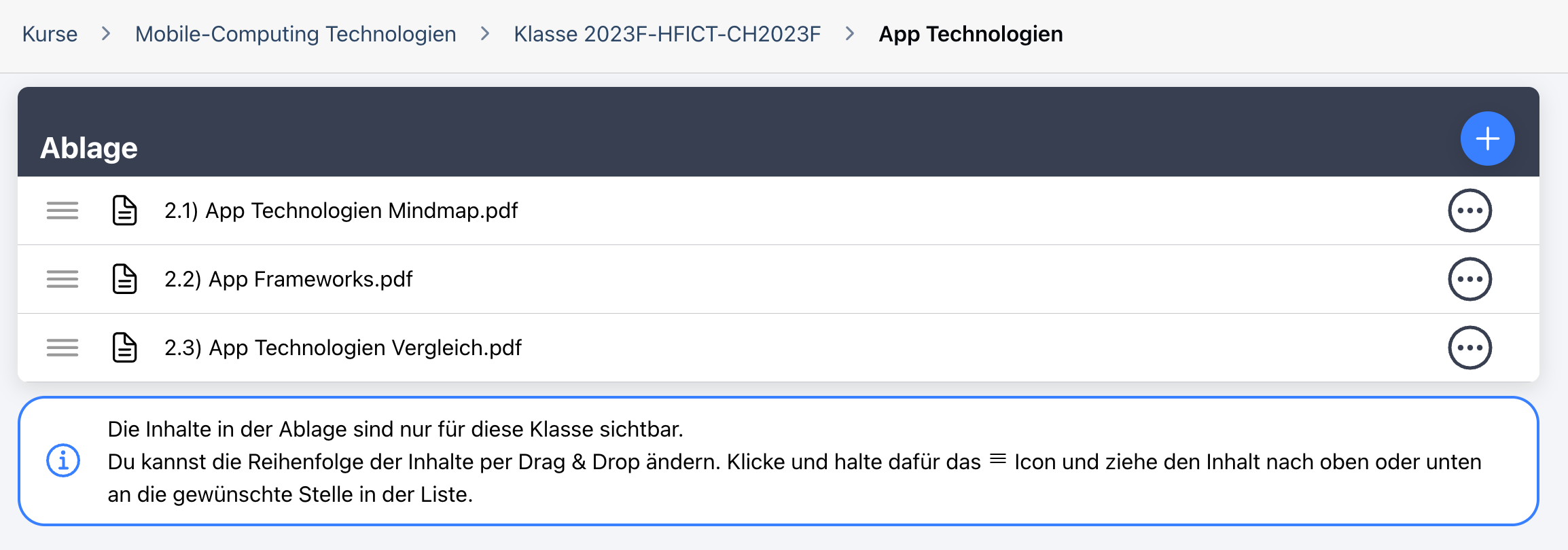
The contents of the file are displayed to course participants under the course content.
🔗 Public file links
Would you like to link files from your course elsewhere outside of the course? For example, for a task in a learning coach?
You can now retrieve a static link for files uploaded in a course block. To do this, click on the context menu button at and select the Public link option. Once the public link is created, you can copy and use it. You can also remove the public link at any time.
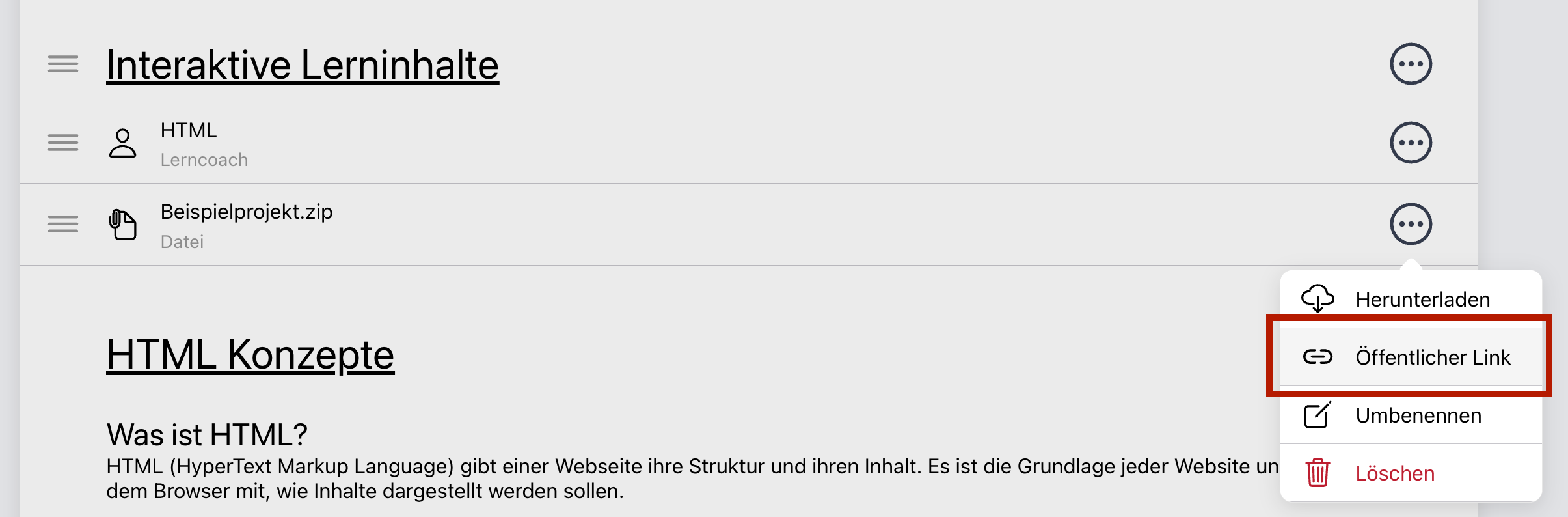
By the way, it is now also possible to change the file name of already uploaded files (rename button).
🛣️ Simplified course navigation
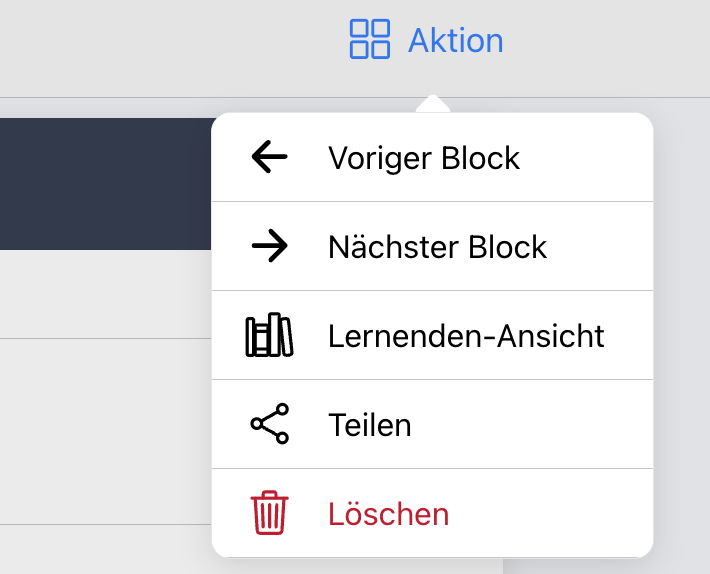
To make it easier to navigate between individual blocks, it is now possible to jump to the previous or next block directly from the page's context menu:
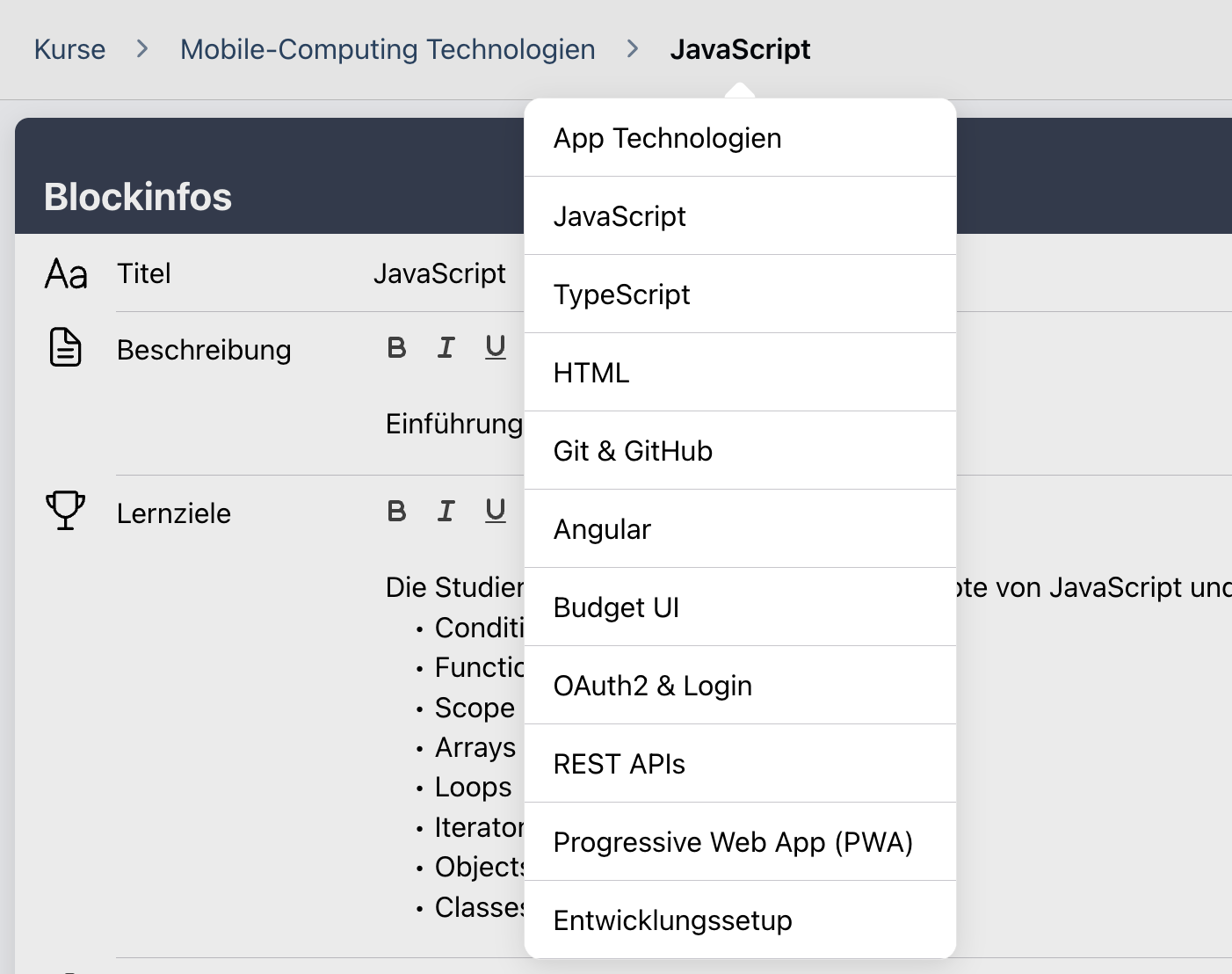
To see a list of all blocks in the course, you can hover over the title of the current block in the header bar. Clicking on a block in the list opens it directly:
Do you have a feature or improvement request?
Enter it in our feedback tool at any time and vote for requests from others that you also find valuable: 👉 https://app.learn-with.ai/feedback
Share this post with teachers and students and help us develop Learn With AI together.