

What's new?
The chat has been significantly expanded and now offers you even more options for talking directly with the AI:
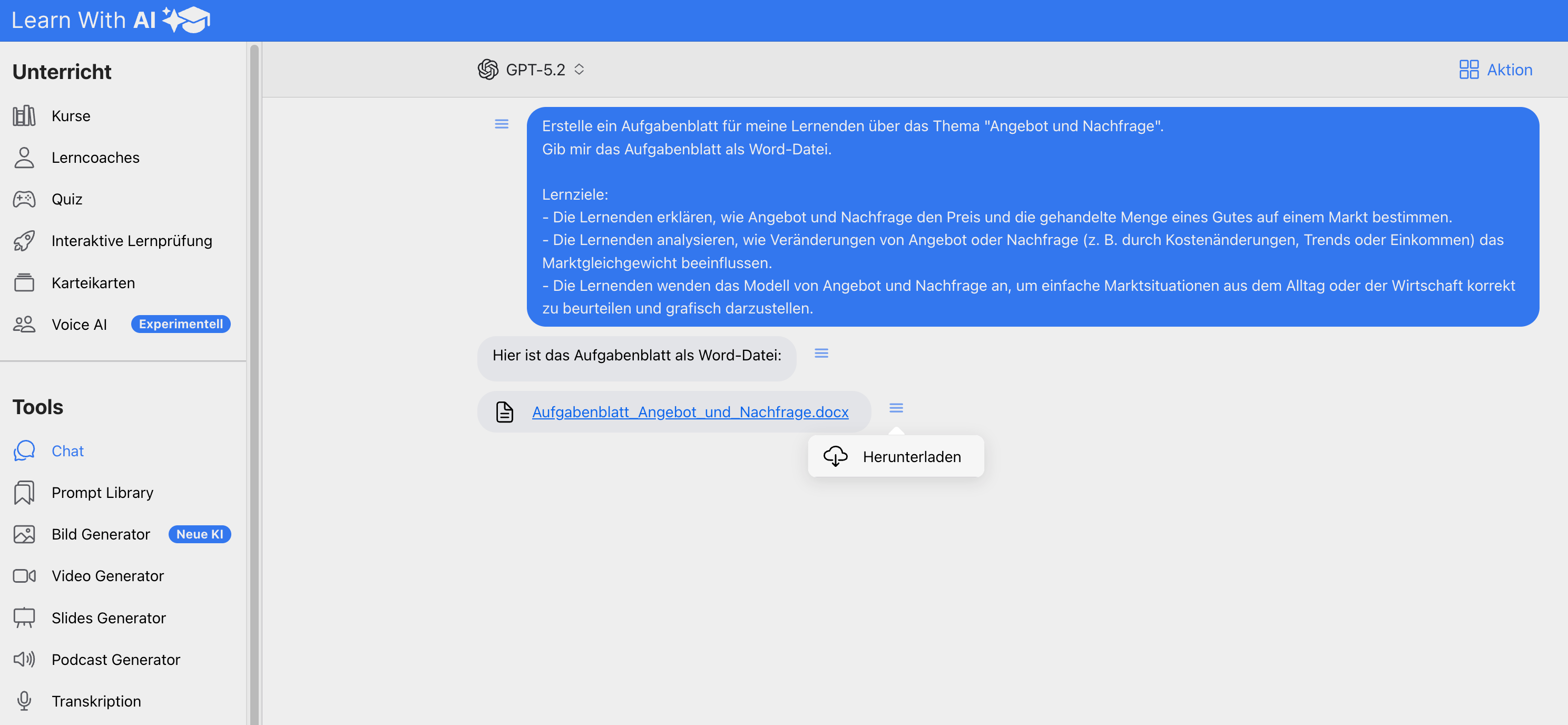
- Create files directly in the chat
Create task sheets, PDFs or other documents directly in the chat and download them directly as a file (Word, Excel, PDF, etc.). - Read and analyze PDFs including images
PDFs with embedded graphics or illustrations can now also be reliably evaluated. - Data analysis: Read Excel files
The chat processes Excel files including several spreadsheets. - Web search with all AI models
Internet search is now available regardless of the model selected. - Insight into AI's internal considerations
- As the AI thinks, you'll see a concise summary of its thought steps. This shows you which considerations and conclusions have gone into the answer even before the actual answer appears.
- Transparent use of tools
Tools called up, such as web search, file search or Python tool, are displayed visibly. This allows you to see at any time what the AI is doing and whether it has actually used external information. - Improved calculations
When doing math tasks, the AI automatically uses the Python tool for (if possible) correct results. - Multi-level tool usage for complex tasks
The AI can independently use several tools one after the other. In this way, even complex issues can be solved in a structured and comprehensible manner. - New models available
GPT-5.2 Instant for quick answers and GPT-5.2 Thinking There are now options for complex issues. - Learning coach update (more information will follow in a separate blog post):
- New AI models
- Improved knowledge base
- Improved calculations (with Python tool/code interpreter turned on)
- web search
- High speed increase in response generation
🧠 That's how it works
Create files directly in the chat:
For example, use the following prompt to have the AI create a task sheet for you:
Create a task sheet for my learners about the topic [insert the topic here]. Give me the task sheet as [insert the desired file here: Word file, PDF, Excel].
[Insert learning objectives here]
Read and analyze PDFs including images
Upload the PDF to the chat using the “Attachment” button and type an instruction in the prompt field.

Read Excel files
You can evaluate Excel files directly in the chat. To do this, load the file via “Attachment” button Up and then formulate your instructions in the prompt field, for example which data should be analyzed, summarized or further processed.
Important note:
Always process Excel files separately with AI. If you want to use different file types one after the other (e.g. first a Word file and then an Excel file), please send them to two separate messages. This allows the AI to focus on one task at a time, which significantly improves the reliability and quality of the results.

Web search with all AI models
Web search is enabled by default and the AI automatically accesses the Internet when it deems it necessary. If you want to force access, add the following to your prompt: “Search the Internet” or “Use the Internet.”

Summary of internal considerations
Starting with GPT-5.0 (including the O3 and O4-Mini models), the AI consciously thinks before answering. These internal considerations — i.e. the path to a solution — are new to you as “Reasoning summary” displayed. This allows you to transparently understand the AI's thinking steps and better understand how it arrived at its answer.
The “Reasoning Summary” is as follows:

Transparent use of tools
The tools that the AI uses are shown to you transparently. This includes:
- File search: Search uploaded files and knowledge base content
- Web search: Search the web for the latest information
- Python tool: Executes code, e.g. for calculations, reading Excel files, data analysis, etc.
Improved calculations
The AI automatically calls the Python tool to perform calculations. This means that the language model Programming code generated, which is then executed to perform the calculations. As a result, calculations can more reliable and with higher accuracy be carried out
Important note: That doesn't mean that all calculations are automatically correct. Errors can still occur in the Code creation yourself arise. A critical review of the results is therefore still important.
Multi-level tool usage for complex tasks
The AI can independently use several tools one after the other. For example, she first researches on the web, then performs calculations with the Python tool and starts further targeted web searches based on the new findings. In this way, even complex issues can be solved in a structured and comprehensible manner.
New models and settings available
The new GPT-5.2 model was added.
When you the thought process on “Instant” (immediately), the model behaves similarly to GPT-4o and GPT-4.1. In this mode, you can still use the creativity adjust. The model doesn't think internally and it becomes No reasoning summary displayed.
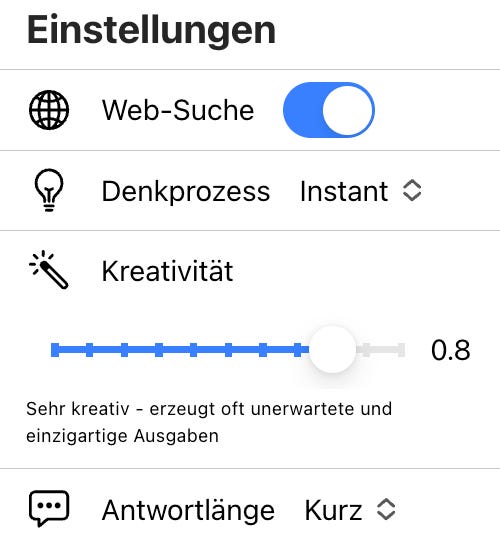
Do you set the thought process of “Short” to “Maximum” Um, think about the model internally and you get a Reasoning summary. In these modes, the Creativity is not adjustable.

Our recommendation:
In most cases, thinking attitudes are sufficient “Instant” or “Short” completely off. For complex tasks that require the use of several tools one after the other (e.g. code interpreter, image analysis, file search, web search), we recommend the thinking stage “Medium” to “Maximum”.
Important note:
The higher the thinking level, the longer it takes to answer and the higher the consumption of resources.
Do you have a feature or improvement request?
Enter it in our feedback tool at any time and vote for requests from others that you also find valuable: 👉 https://app.learn-with.ai/feedback
Share this post with teachers and students and help us develop Learn-With.AI together.
.png)