

From now on, you can your Quiz in Learn With AI directly as Task sheet with solutions export. The document is used as editable docx file downloaded. You can therefore individually adapt and supplement tasks and design. If you save your quiz to Learn With AI, you can also edit it at any time and continue to share it as a link.
In addition, quizzes are very easy import, export and share via link.
✨ What's new?
- Print function for quizzes — create task sheets with one click
- Automatic solution sheet inclusive
- Layout for multiple choice and free text questions
- Importing & Exporting Quizzes — simply duplicate, share, and expand
- Exporting to other LMS: Compatible with Moodle, Microsoft Forms, and OpenOLAT
- Share via link — Learners can answer and receive the quiz directly in Learn With AI automatically an evaluation as well as feedback by one of most powerful AI models.
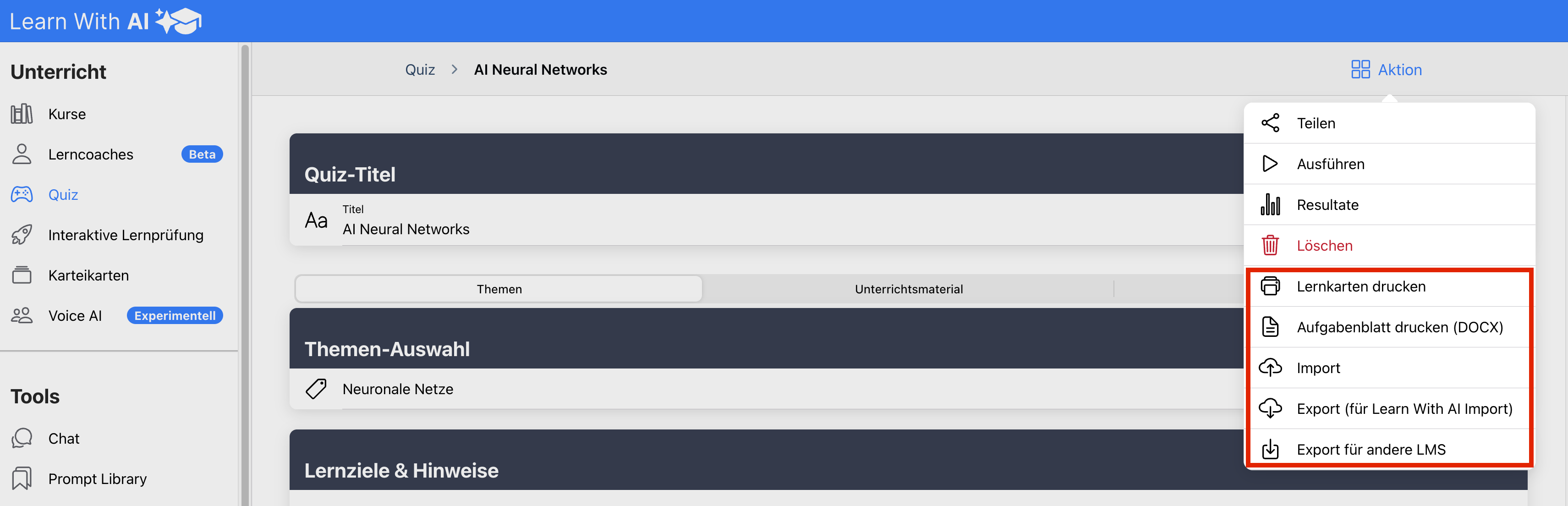
That's how it works
🖨️ Print task sheet:
- Open the one you want quiz in Learn With AI (or create a new one).
- Click on “Print task sheet (DOCX)” 🖨️.
- Open the document in Wordto customize it.
- Print out the task sheet or send it on digitally.
📥 Import quizzes:
- Create a new quiz.
- Click on “Import”.
- Select the file (the file ends with .json)
- Review the imported questions and adjust as needed.
- Save the quiz
📄📄 Duplicate quiz:
- Open the one you want quiz in Learn With AI (or create a new one).
- Click on “Export (for Learn With AI Import)” - the file is downloaded.
- Create a new quiz.
- Click on “Import”.
- Select the file you downloaded in step 2.
- Review the imported questions and adjust as needed.
- Save the quiz
🔗 Share quizzes with your learners via link:
Option 1:
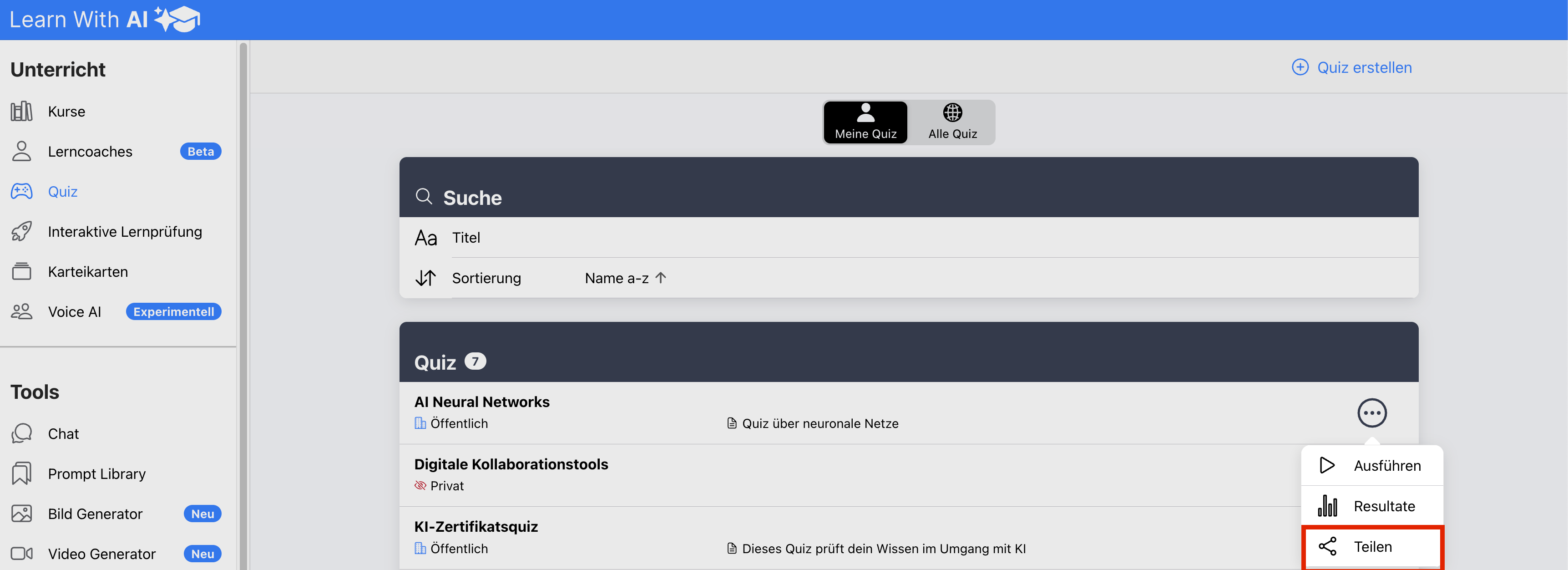
- Navigate to the quiz overview
- Press on the three dots (...) and click Share
- The link is now in your clipboard and you can easily send it via teams, email, etc.
- 💡 Tip: Alternatively, you can add the quiz to one of your Learn With AI courses. You can see how it works here.
Option 2:
- Navigate to the quiz overview
- Click on your favorite quiz
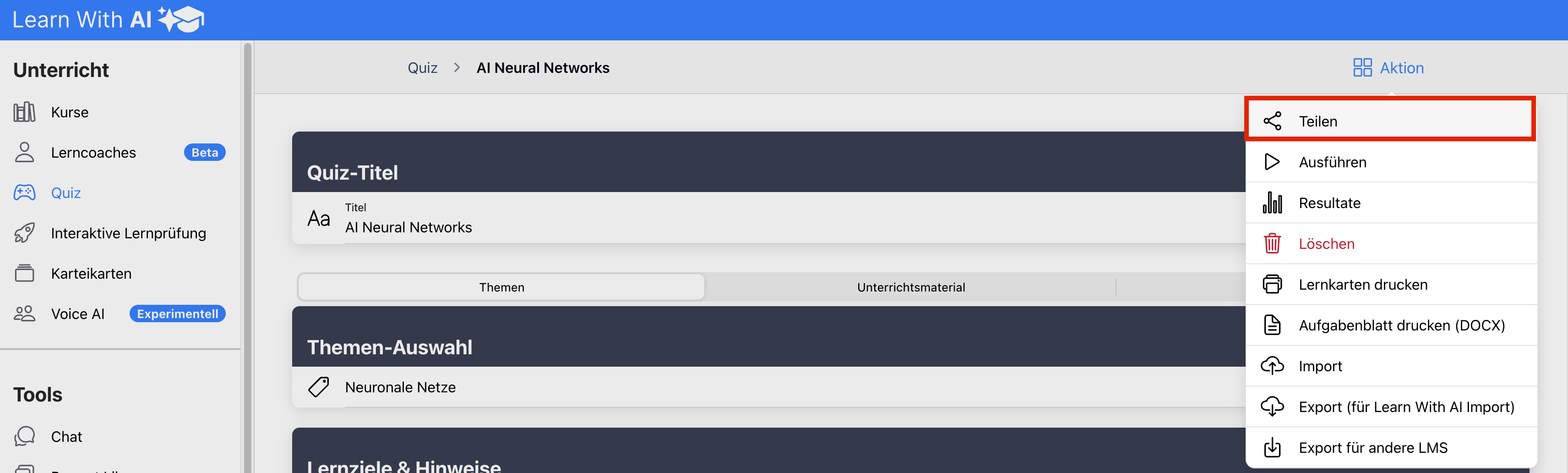
- Click on”action“and then on”sharing”
- The link is now in your clipboard and you can easily send it via teams, email, etc.
- 💡 Tip: Alternatively, you can add the quiz to one of your Learn With AI courses. You can see how it works here.
.png)